
Responses
Every form has its own dashboard. It shows who filled in your form, lets you search and export the answers, and lets you close the form when you have enough responses. Open it from the Forms page with Dashboard.
The header
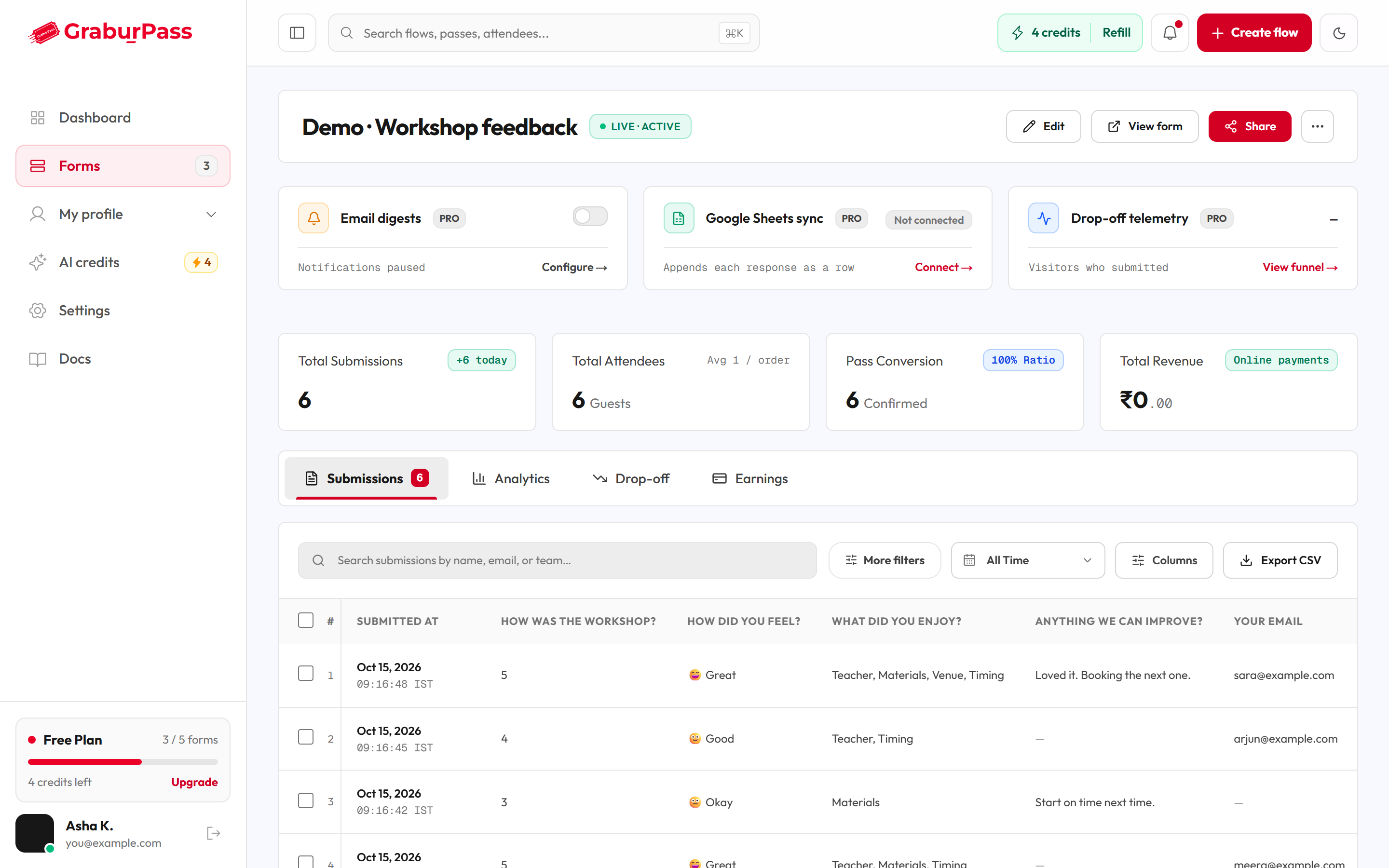
At the top you see the form title and a status chip. A published form has the buttons Edit, View form (opens the live form in a new tab) and Share. A draft has Continue editing instead.
| Status | Meaning |
|---|---|
| Draft | You haven't published the form yet. |
| Live · Active | The form is open and taking responses. |
| Scheduled | The form is published but its open time hasn't come yet. |
| Full | The form reached its limit of seats. |
| Closed | You closed it, or its close time has passed. |
Close, reopen or delete a form
- Click the ⋯ button (More actions) in the header.
- Choose Close form. To undo it later, choose Reopen form.
- In the box titled "Stop accepting responses?", click Close form. Click Keep it open to cancel.
Nobody can submit once the form is closed, including people filling it in right now. Responses you already have are kept. A closed form shows under Archived on the Forms page. The same menu has Delete, which removes the form and all its responses for good.
Banners
These notices appear above the tabs when they apply.
| Banner | What it means | What to do |
|---|---|---|
| N paid responses arrived after the form was full | People paid at the same moment the last seat was taken. Their rows carry an Over limit badge. | Click Keep on each row, or refund it. Click Go to Earnings. See Earnings and refunds. |
| N responses are locked | You are over your plan's monthly limit of visible responses. The extra responses are saved, not deleted. | Click Upgrade to see them all. A new month also starts a fresh allowance. |
| Grey banner with See plans | You have used 80% or more of your monthly allowance. | Click See plans if you expect more responses. |
| Couldn't load your plan details. Reload the page to try again. | Your plan information didn't load. | Reload the page. |
Below the banners are cards for email alerts, Google Sheets and drop-off. See Email alerts and Google Sheets.
The stat row
| Tile | What it shows |
|---|---|
| Total Submissions | All responses, with how many came in today. For a form with limited seats it shows used and total. |
| Total Attendees | People counted across responses, with the average per order. |
| Pass Conversion | The share of responses that are confirmed, and how many. A response is confirmed if the form takes no payment, or if it was paid. |
| Total Revenue | The total charged to payers on successful payments, the same as Collected on the Earnings tab. |
Dates and times in the tiles and table are in Indian time (IST).
The Submissions tab
Find responses
- Open the Submissions tab.
- Type in the search box to look by name, email or team.
- Pick a date from the date menu, or choose Custom range….
- Click More filters to narrow further.
- Click Clear all to remove the search and every filter.
Chips under the toolbar show which filters are on. Click a chip to remove it.
| Filter | What it does | Options / default |
|---|---|---|
| Date menu | Limits responses to when they were submitted. | All Time (default), Today, Last 7 Days, Last 30 Days, Custom range… |
| From date / To date | Sets your own start and end day. | Empty |
| Form version | Separates responses to the current form from those to an older version, before you changed it. | All responses (default), Current form only, Older form versions only |
| Payment | Shown only if the form has a payment block. | Paid and unpaid (default), Paid, Unpaid |
| Answer conditions | Finds responses by what they answered. Choose a question, a condition, then a value. | Conditions: is, contains, is answered, is empty |
Columns
Click Columns to choose what the table shows. Your choice is saved for this form in this browser.
- Summary columns: Submitted At, Pass Tier, Quantity, Amount and Status.
- A Steps section with one checkbox for each question.
Export CSV
- Tick the rows you want. Skip this to export everything that matches your search and filters.
- Click Export CSV.
- Open the downloaded file in Excel or Google Sheets.
A CSV file is a plain table. The file is named after your form, for example my-form_responses_2026-10-14.csv. It has the columns you see in the table. Responses locked by your plan are never included.
The table
| Column | What it shows |
|---|---|
| Checkbox | Picks rows to export. The top checkbox picks all. It does not delete anything. |
| # | The response number. |
| Submitted At | When it came in. May carry the badges below. |
| Tier | The pass or ticket type chosen. |
| Quantity | How many passes, for example "2 Passes". |
| One column per question | The answers. |
| Amount | What was paid. |
| Status | Confirmed or Unpaid. |
| Badge | What it means |
|---|---|
| Older form version | The person answered before you last republished the form. |
| Over limit | Someone paid, but the form reached its Limit responses maximum before their response was saved. Click Keep to keep it (its seats stay counted), or refund it from the Earnings tab, which deletes it and frees the seats. |
At the bottom, choose Rows per page (10, 25, 50 or 100; the default is 25) and use Previous page and Next page.
Read one response
- Click a row. A panel slides in from the right, titled "Submission #N".
- On the Details tab, answers are grouped under Required Information and Optional Information. A question left blank says Not provided.
- Use Previous submission and Next submission to move between responses.
- Click Close panel when you are done.
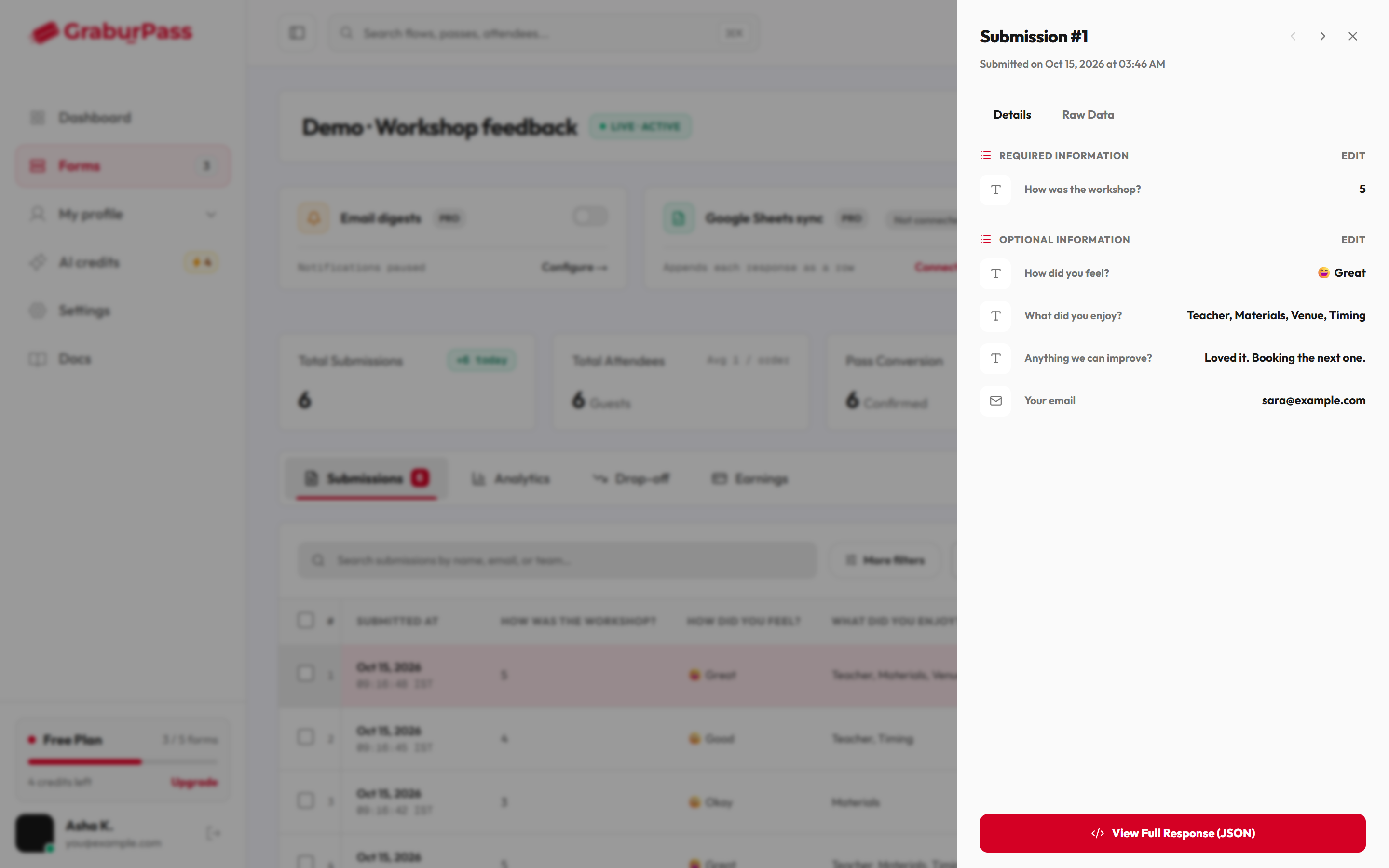
The Raw Data tab shows the same answers as plain data. You can't delete a single response. You can only delete the whole form.
Empty states
| Message | What it means |
|---|---|
| No submissions yet | Nobody has submitted. Responses appear here as soon as someone does. |
| No matching responses | Your search or filters match nothing. Change them or click Clear all. |