
Calculation
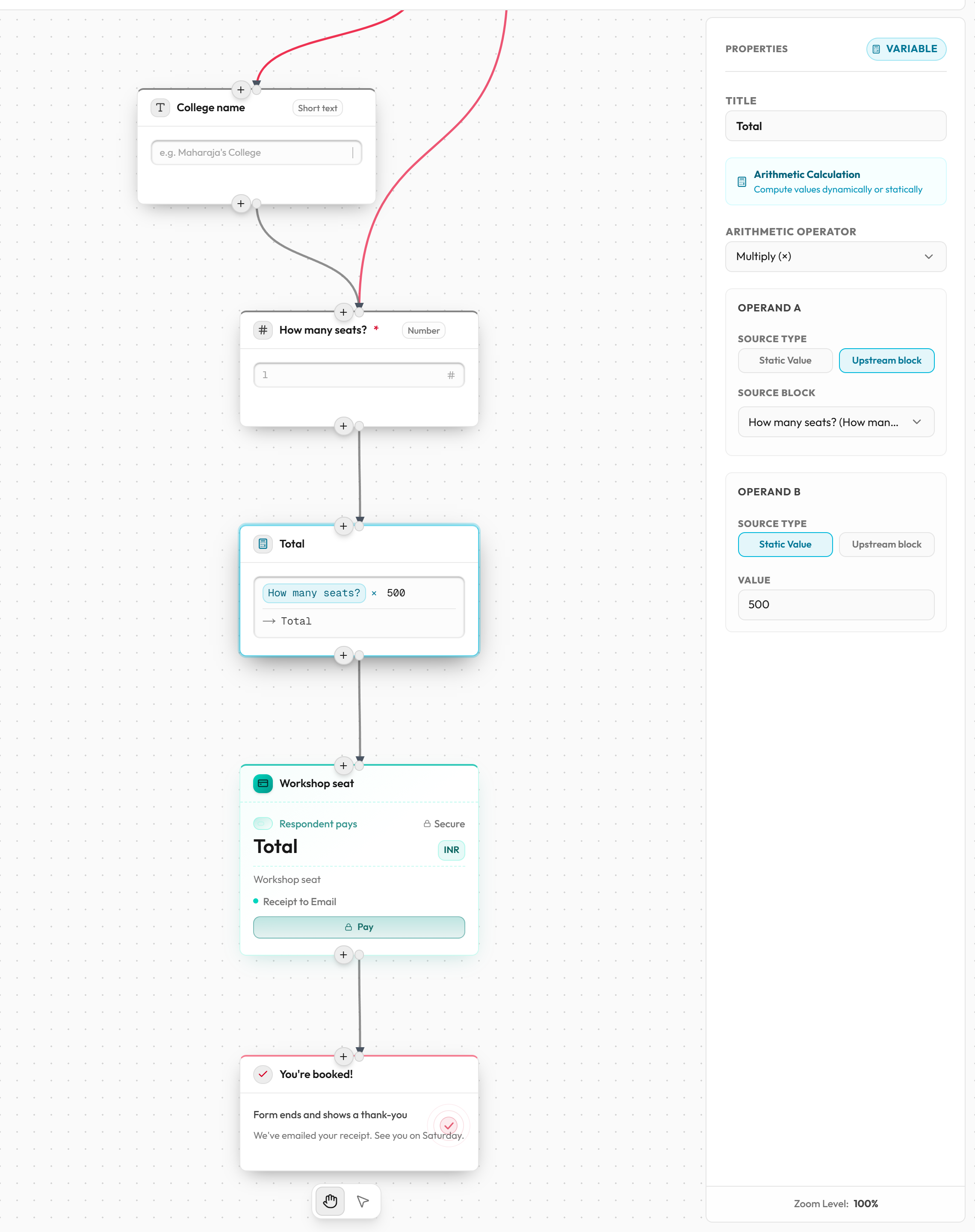
The Calculation block does one sum with two values and keeps the result. Use it to work out a total for a payment, a number of repeats, or a value an If / Else block can check.
What your respondent sees
Nothing. The block is invisible. Its result appears only through the blocks that use it, for example as the amount on a payment.
Connections
- One input at the top and one output at the bottom.
- Put it after the questions it reads. Its source list shows only earlier Number questions and other Calculation blocks.
- Other blocks can then pick it: Payment (amount), Repeat (count), If / Else rules and other Calculation blocks.
- A Calculation block can't depend on itself, directly or through other Calculation blocks.
How to add a Calculation block
- Click Calculation in the Add to form list, or hover a block, click the + below it and choose Add Arithmetic Block.
- Connect the block before it into the Calculation block, and the Calculation block to the next one.
- Click the block and choose an Arithmetic Operator.
- For Operand A and Operand B (the two numbers in the sum), choose a Source Type and fill in the value or source.
- Pick this block in the Payment, Repeat or If / Else block that needs the result.
Settings
| Setting | What it does | Options / default |
|---|---|---|
| Title | The block's name. It shows in the lists where you pick a Calculation block. | Text. New blocks are named "Arithmetic Block". |
| Arithmetic Operator | The sum to do with A and B. | Add (+), Subtract (-), Multiply (×), Divide (÷), Minimum (smaller of A, B), Maximum (larger of A, B). Default Multiply. Dividing by 0 gives 0. |
| Operand A and Operand B - Source Type | Whether the value is typed in or read from earlier in the form. | Two buttons: Static Value or Upstream block. |
| Static Value | A number you type. | Number, such as 10. A new static value is 1. |
| Source Block | An earlier Number question or Calculation block to read. | "Select source block…", or "No upstream blocks" until you connect one. |
If a question is blank or isn't a number, it counts as 0. The result keeps all its decimals. A payment rounds to the paisa.
Example: total = tickets × ₹500
- Add a required Number question "How many tickets?".
- Add a Calculation block after it and set Arithmetic Operator to Multiply (×).
- Set Operand A to Upstream block, with Source Block "How many tickets?".
- Set Operand B to Static Value 500.
- In the Payment block, set Pricing Amount Type to Arithmetic Calculation Block and pick this block. Two tickets cost ₹1,000.
Counters and running totals inside a Repeat
Put a Calculation block inside a Repeat block's loop body and point one operand at another Calculation block. That block is then updated once on every pass. For example, set the operator to Add, Operand A to a "Total" Calculation block, and Operand B to the price question inside the loop. The total grows by each pass's price.
If you point at no other Calculation block in the loop, nothing else reads the block's result, and you see an error (see below).
Common mistakes
| Message | What it means | What to do |
|---|---|---|
| Arithmetic block arithmetic operator is not selected. | No operator chosen. | Choose one. |
| Arithmetic block operand A/B is missing its node reference. | An operand is set to Upstream block but no source is chosen. | Pick a Source Block. |
| Arithmetic block operand A/B is missing its numeric value. | A static value is empty. | Type a number. |
| Circular calculation dependency. | Calculation blocks read each other in a circle. | Break the circle. |
| "X" runs every loop pass but does nothing with the result | A Calculation block in a loop updates nothing and no one reads it. | Point one operand at the Calculation block it should update, or use its result elsewhere. |
| Answer is used but optional | A question it reads isn't required. | Click Make required. |