Quick start
This page takes you from an empty board to a live form with a shareable link. You will add two questions and connect them. It takes about ten minutes.
Build your first form
- Sign in, then open Forms in the left menu.
- Click Create flow at the top and choose Form, or click Start blank. The editor opens with a Start block already joined to an End screen.
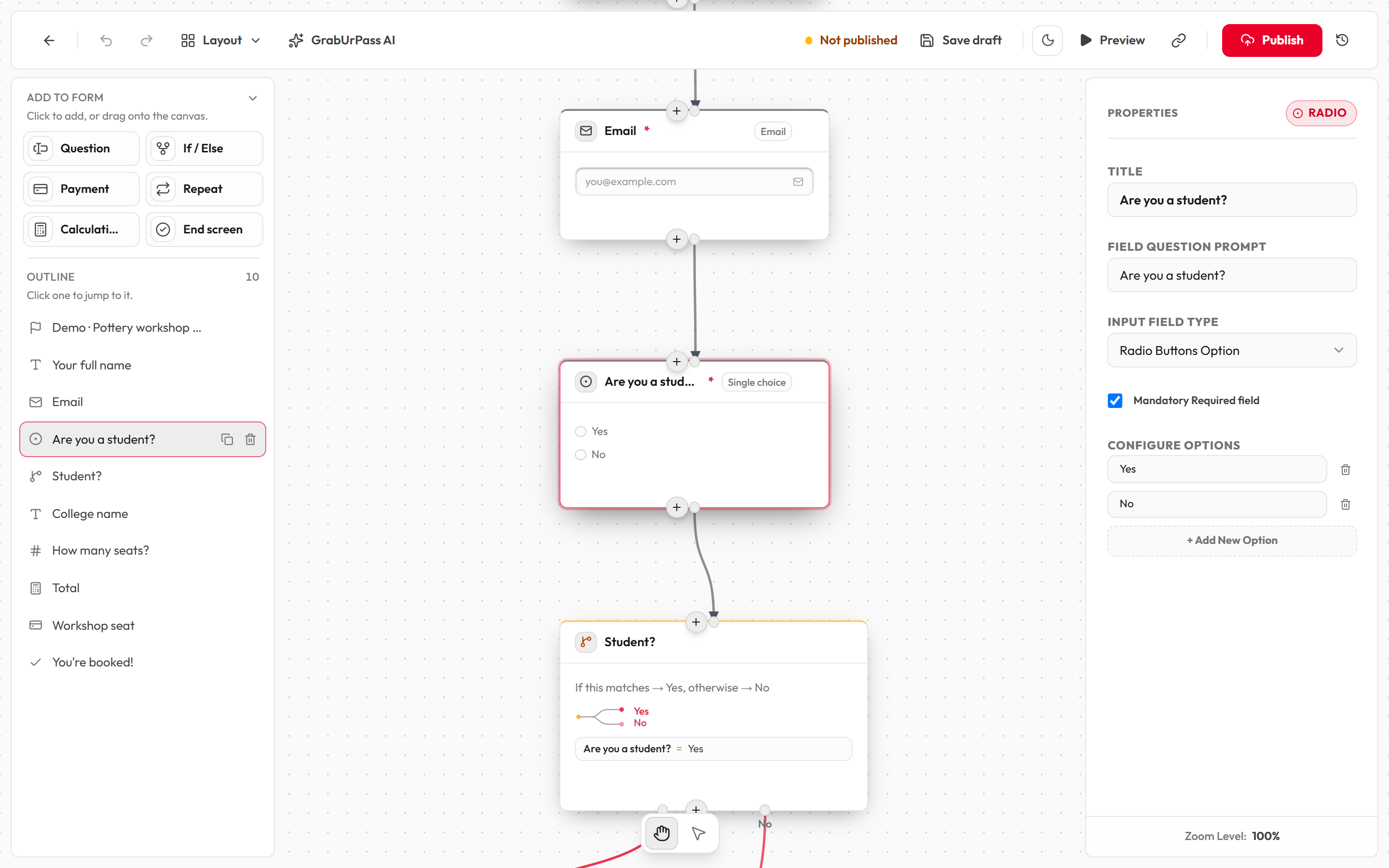
- In Add to form on the left, click Question. A block appears on the board. Add a second one the same way.
- Click a question block. In the right panel, type what you want to ask in Field Question Prompt, and pick an answer style in Input Field Type.
- Connect the blocks in order. Drag from the small dot at the bottom of Start and release anywhere over your first question. Repeat from the first question to the second, and from the second to the End screen.
- Click the End screen block and write your thank-you message in Title and Description text.
- Click Save draft. If a red errors chip appears, click it and follow the list. See Fix errors.
Test it and go live
- Click Preview. Your form opens in a new tab in test mode. Fill it in. Nothing is saved.
- Back in the editor, click Publish.
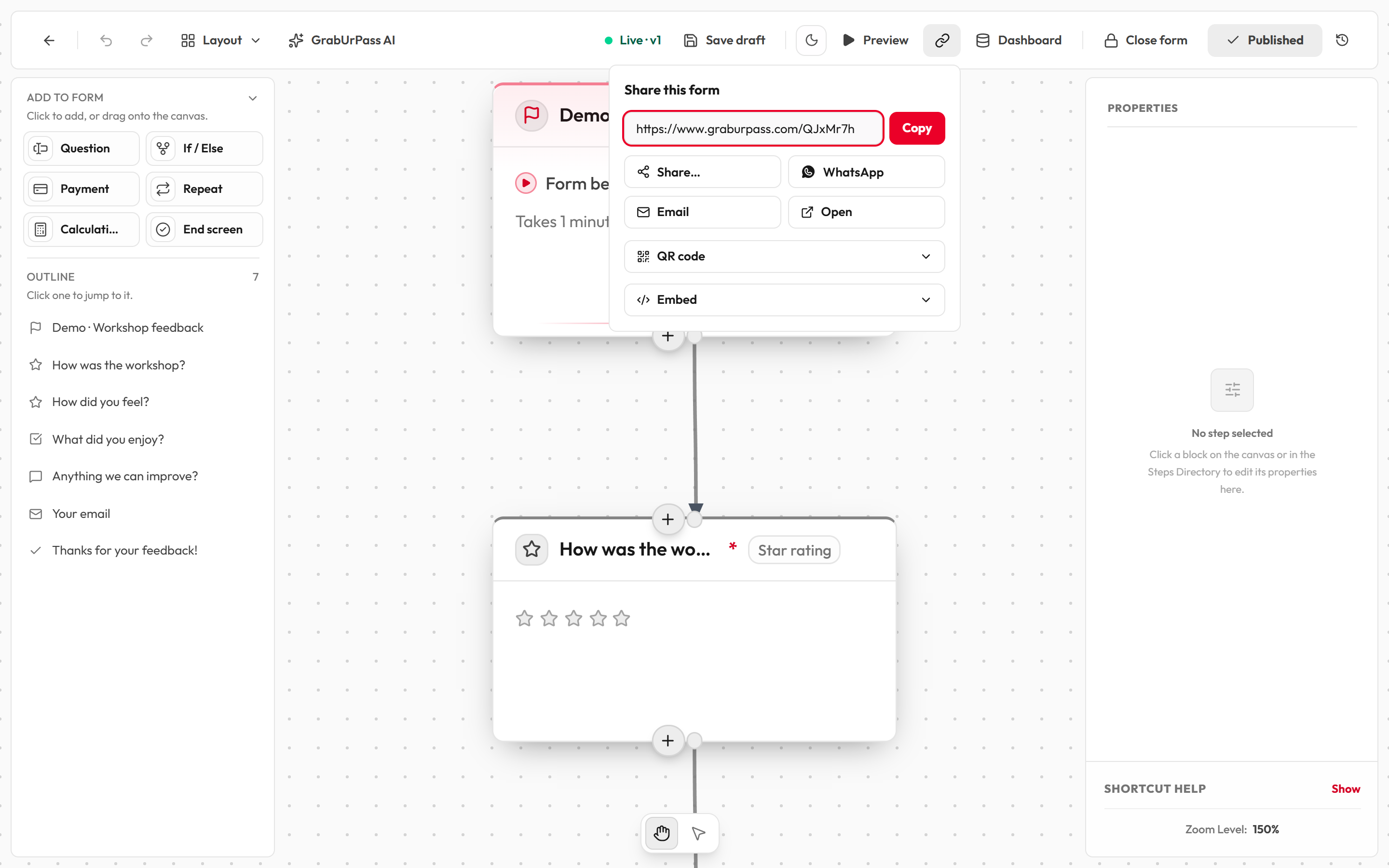
- Click Share link and then copy the link. Send it to your respondents.