
Editor tour
The editor is where you build a form. You place blocks on a board and draw connections between them. This page explains every part of the screen.
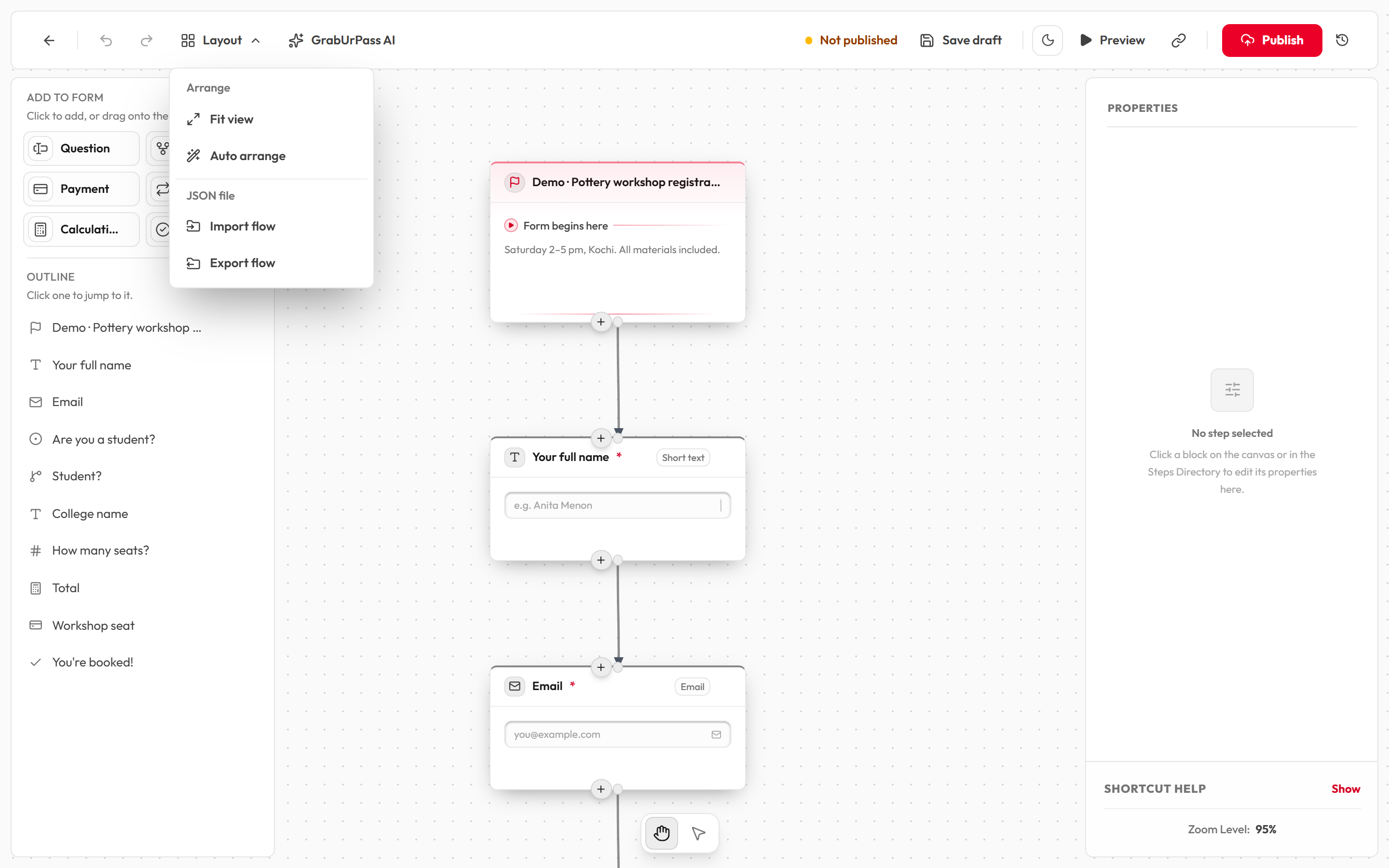
The layout
- Left: Add to form. Six tiles you click or drag onto the board: Question, If / Else, Payment, Repeat, Calculation and End screen. Below the tiles is the Outline.
- Middle: the board. Your blocks and the connections between them.
- Right: the properties panel. Click a block to edit its settings here. With nothing selected it says No step selected.
- Top: the header. Undo, Redo, Layout menu, Save draft, Preview, Share link and Publish. See Header toolbar.
- Bottom: the tool bar. Switch between the Hand and Select tools. See Canvas tools and shortcuts.
The Start block is not in the palette. Every form has one already, and you cannot add a second.
The Outline
The Outline lists every block in your form. Click a row to jump to that block on the board. Each row has Duplicate and Delete buttons.
Add a block
- In Add to form, click a tile. The block appears in the middle of the board and is selected.
- Or drag the tile onto the board and drop it where you want it.
- Or hover over an existing block and click the + at its top or bottom. This adds a block above or below it and slots it into the existing connection.
The Payment tile is only shown if payments are available on your account.
Connect blocks
A connection is a line that says what comes next. Every block has one dot at the top (where connections come in), except Start. Dots at the bottom are where connections go out.
| Block | Outgoing dots |
|---|---|
| Start, Question, Payment, Calculation | One (next). |
| If / Else | Two: Yes and No. |
| Repeat | Two: Loop Body and Next. |
| End screen | None. |
- Drag from an outgoing dot.
- Release anywhere over the block you want to connect to. You do not have to hit its dot.
- To remove a connection, click the line. It turns red when you hover over it.
Each outgoing dot holds one connection. Dragging from it again replaces the old one. Several connections can lead into one block. Releasing on empty board cancels the drag.
Move and delete blocks
- Drag a block to move it. Blocks snap to a grid.
- Hover a block and click the trash icon (Delete block), or select it and press
Delete. - Deleting a block also removes its connections and clears anything that pointed at it, such as an If / Else rule.
- You cannot delete or duplicate Start. You cannot delete the last End screen.
- Made a mistake? Click Undo or press
Ctrl+Z.
Canvas tools and shortcuts
The tool bar at the bottom has two tools.
- Hand (
H): the default. Drag empty board to move around. - Select (
V): drag empty board to draw a box. Every block the box touches is selected.
When two or more blocks are selected, the tool bar also shows how many, with Duplicate, Copy and Delete. You can zoom between 15% and 200%.
| Keys | What it does |
|---|---|
Space + drag, or middle mouse button | Move around the board |
V / H | Select tool / Hand tool |
Shift, Ctrl or Cmd + click | Add or remove a block from the selection |
Ctrl+A | Select all blocks |
Delete or Backspace | Delete the selected blocks |
Ctrl+D | Duplicate |
Ctrl+C / Ctrl+V | Copy / paste |
Esc | Clear the selection or close a menu |
Ctrl+Z | Undo |
Ctrl+Y or Ctrl+Shift+Z | Redo |
| Mouse wheel | Zoom in and out |
Shortcuts do not work while you are typing in a box. On a Mac, use Cmd in place of Ctrl. Pasted blocks keep the connections between them. A duplicate gets " (Copy)" added to its title.
Right-click menus
- On a block: Copy, Duplicate, Paste and Delete. If several blocks are selected, the menu acts on all of them.
- On empty board: Paste only, placed where you clicked. It is greyed out with "Nothing copied yet" if you have not copied anything.
Header toolbar
From left to right:
| Button | What it does |
|---|---|
| Back arrow | Returns to your dashboard. |
| Undo / Redo | Step back or forward through your last 100 changes. |
| Layout menu | Fit view recentres and fits all blocks on screen. Auto arrange tidies the whole board. Import flow and Export flow are in Import and export. |
| GrabUrPass AI | Opens the AI helper. See GrabUrPass AI. |
| Status chip | Shows if respondents can see your form. See below. |
| N errors chip | Appears in red when something needs fixing. See Fix errors. |
| Save draft | Saves your work. Saving does not make the form live. |
| Theme toggle | Switches between light and dark. |
| Preview | Opens a test version in a new tab. Hidden while the form has errors. See Preview and test. |
| Share link | Opens the share panel. See Publish and share. |
| Dashboard (database icon) | Opens the form's responses. Appears after the first publish. |
| Close form / Closed · Reopen | Stops or restarts responses. Appears after the first publish. |
| Publish / Publish changes / Published | Makes your form live. The clock icon next to it opens version history. |
Status chip
| Chip | Meaning |
|---|---|
| Not published (amber) | Respondents cannot see the form yet. |
| Unpublished changes (amber, pulsing) | Respondents still see the last published version. Click Publish changes to update it. |
| Live · v3 (green) | What respondents see matches your editor. The number is the version. |
On narrow screens only the coloured dot is shown.
Save draft and autosave
- Click Save draft to save now. The button reads Saving…, then Saved. If saving fails it reads Retry save.
- Your board is also copied to your browser two seconds after each change, as a safety net.
- Your draft is saved to your account automatically every 5 minutes, but only when there are no errors.
- If you close the tab with unsaved changes, we try to save one last time. You will be asked to confirm if you try to leave the page.
Fix errors
When your form has a problem, the header shows a red N errors chip and Save draft becomes Fix errors. Saving, autosave, Preview and Publish are paused until you fix them.
- Click the red chip. The Cannot Save — Fix These Errors First list opens.
- Each row shows the block name and the problem.
- Click View to jump to that block, and fix it in the right panel.
- Where you see Make required, click it to fix the problem in one step.
- Click Fix with GrabUrPass AI if you want the AI to try. This uses 1 credit.
On the board, a block with a problem shows a pulsing red icon. Hover it to read the message.
Error messages
| Message | What it means | What to do |
|---|---|---|
| Unreachable step: "X" is not connected to the Welcome Screen. | Nothing leads into this block. | Draw a connection into it from the block before. |
| Dead-end flow. The step "X" is missing an outgoing connection… | The path stops at this block and never reaches an End screen. | Connect it to the next block or an End screen. |
| Every path out of “X” needs to lead somewhere… | One of an If / Else block's paths (Yes, No, Otherwise, if, or Otherwise) isn't connected, or doesn't reach an End screen. The message names the path. | Connect every path onwards. |
| Dead-end loop… | The Next path of a Repeat block never reaches an End screen. | Connect Next onwards. |
| Multiple checkout steps in a single flow path… | A respondent could meet two payments on one path. | Keep one payment per path. |
| "A" refers to "B", but "B" lives inside the loop… | A block outside a Repeat is using a value from inside it. | Use the value inside the same Repeat, or move the calculation outside it. |
| Question label is empty. | A question has no prompt. | Type it in Field Question Prompt. |
| Answer is used but optional… | Another block reads this question, but it can be skipped. | Click Make required. |
| "…" needs at least 2 options. | A choice question has fewer than two options. | Add options. |
| One or more options are empty. | A choice has a blank option. | Fill in or delete it. |
| Star rating needs at least 2 stars. / Rating scale needs at least 2 items. | The scale is too short. | Increase it. |
| File upload max size must be greater than 0. | The size limit is invalid. | Set it between 1 and 10 MB. |
| The “If” check in “X” has no rules yet. | An If / Else has nothing to check. | Add a rule. |
| A condition rule has no target field selected. | A rule has no question chosen. | Pick one in Field. |
| A rule in the “If” check in “X” uses a question that has been deleted. | The question was deleted. | Pick another question. |
| A condition rule is missing its comparison value. | A rule has no value to compare with. | Fill in the value. |
| Response limit: … can't be used to count seats. | The Start block counts responses by something that is not allowed. | Pick a number question or a repeating block, or set it to 1. |
| Payment step must be outside any loop. | A payment sits inside a Repeat. | Move it outside. |
| Payment amount must be greater than zero. | The price is 0. | Enter a price. |
| Payment description is empty. | No product label. | Fill in Product / Service Label. |
| Payment billing source (email field) is not selected. | No email question chosen for the receipt. | Pick one in Billing Email Source. |
| Payment amount arithmetic block is not selected. | The price should come from a Calculation, but none is chosen. | Pick one, or switch to a flat amount. |
| Repeat block: fixed count must be at least 1. | The count is 0. | Enter 1 or more. |
| Repeat block: no source number field selected… | The count should come from a question, but none is chosen. | Pick a number question. |
| Arithmetic block operand A/B is missing… | A Calculation has an empty input. | Enter a number or pick a source. |
| Circular calculation dependency… | Calculations depend on each other in a circle. | Break the loop of references. |
| "X" runs every loop pass but does nothing with the result… | A Calculation inside a Repeat is not used by anything. | Use its result somewhere, or point one input at the calculation it should update. |
| Fix N problems before publishing: … | You clicked Publish with errors. | Fix the list first. |
Messages about a block that "is missing its … configuration" mean the block lost its settings. Delete it and add a fresh one.
Import and export
Export flow (in the Layout menu) downloads your form as a file called form-flow-canvas.json. Treat it as a backup copy. Import flow loads such a file and replaces what is on the board. You can undo it. Import is for files exported from GrabUrPass.
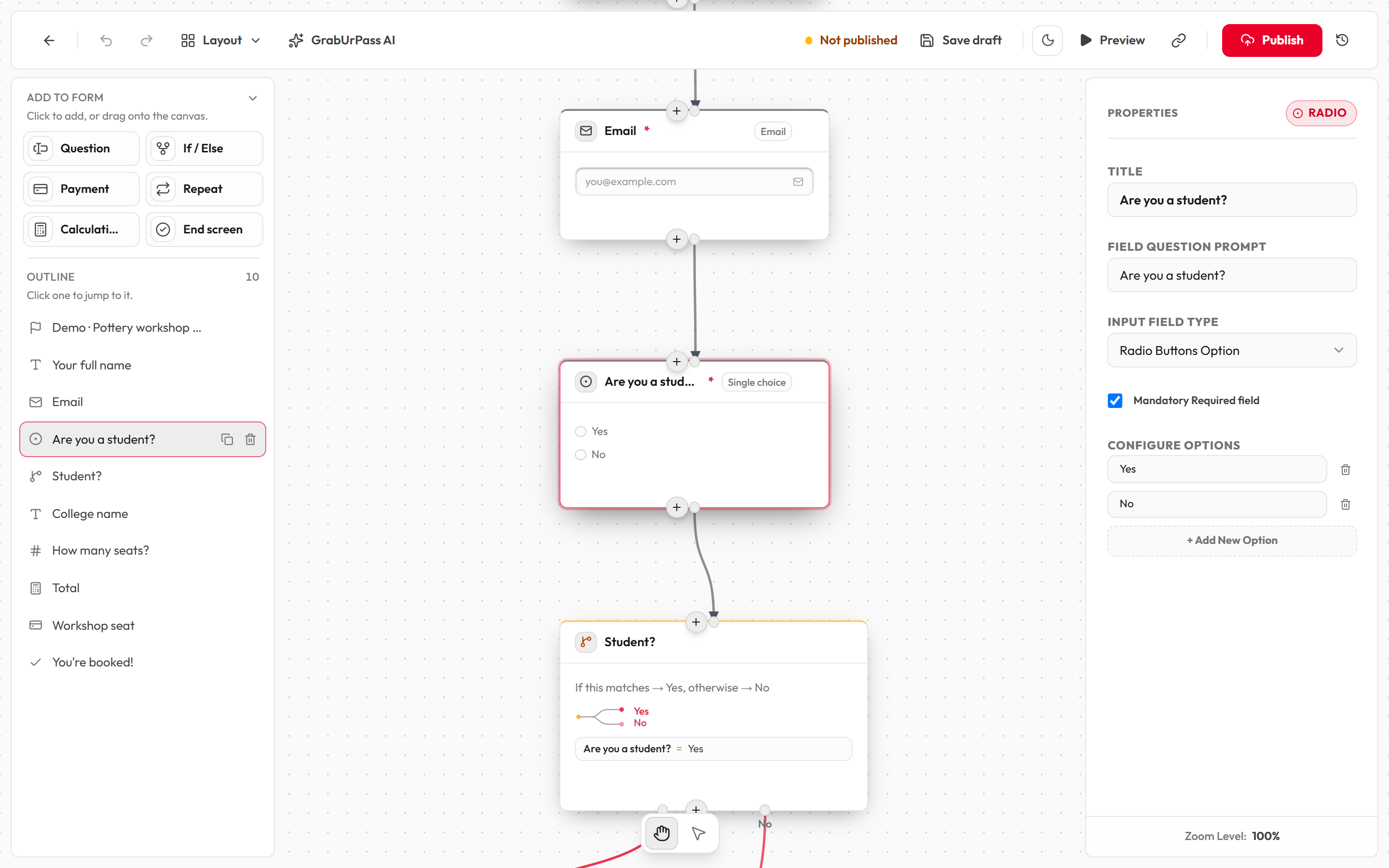
Title vs Question prompt
Every question has two names, and they do different jobs.
| Name | Who sees it | Used for |
|---|---|---|
| Title | Only you. | Naming the block in the Outline and in drop-down lists, such as the question picker in an If / Else. |
| Field Question Prompt | Your respondents. | The question text on the form. The card on your board also shows it. |
The exception is the Start block. Its Title is the form's title, and respondents see it.