
Preview and test
Preview shows your form the way a respondent will see it. Use it to check your questions, your branching and your thank-you message before you share a link.
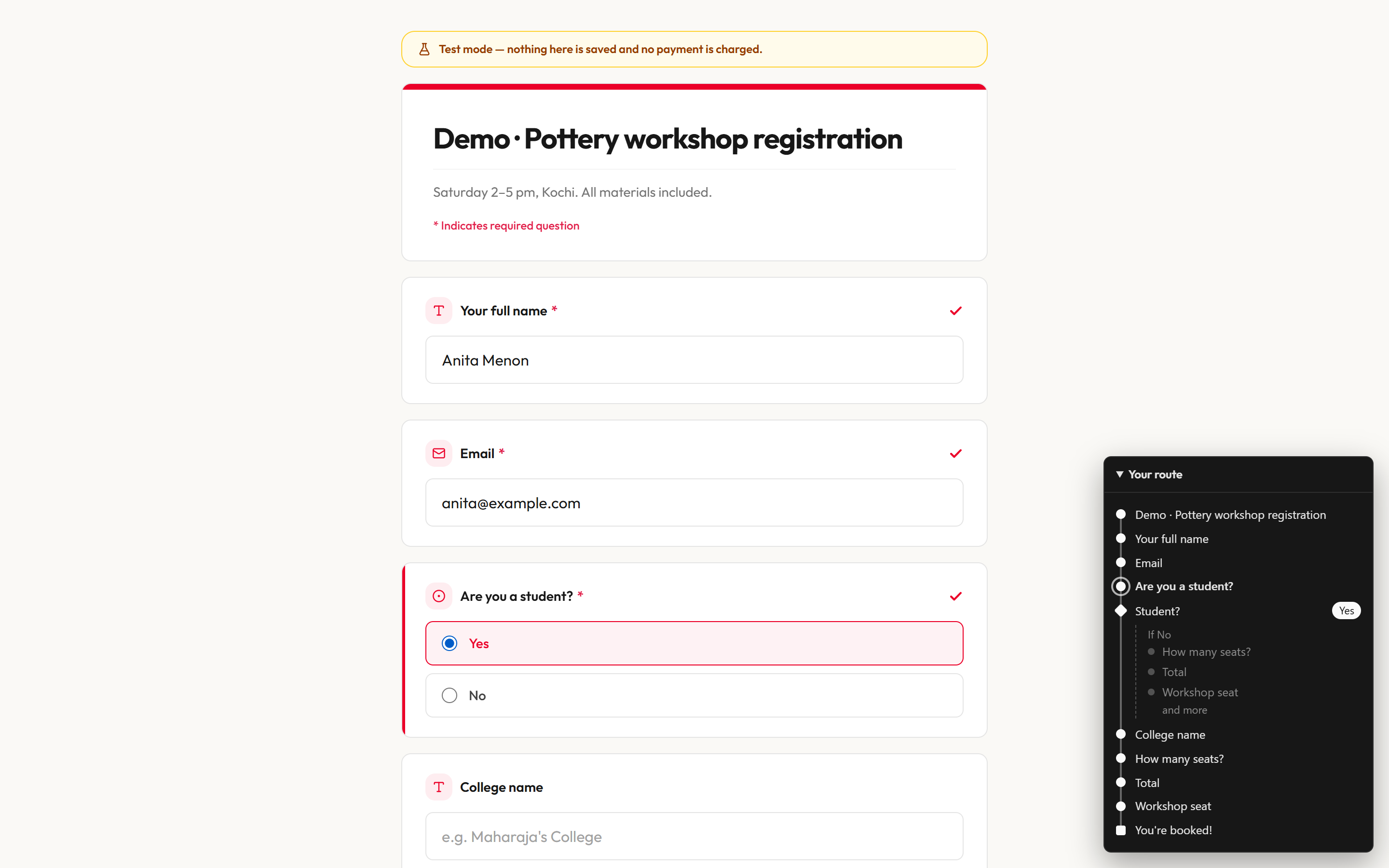
Open the preview
- In the editor, click Preview in the header. It saves your draft first, then opens a new tab.
- Or, on the Forms page, click Preview on a draft form's card.
- Fill in the form and click Submit.
Preview is hidden while your form has errors. Fix them first. See Fix errors.
What you'll see
| Part | What it does |
|---|---|
| Test mode banner | Reads "Test mode — nothing here is saved and no payment is charged." It is always on in Preview. |
| Your form | The latest draft, not the published version. Questions appear and disappear as you answer, as they do for respondents. |
| Payment steps | Marked as paid straight away. No real checkout opens and no money moves. |
| Your route panel | A floating panel at the bottom right. It lists the path your answers have taken through the form, including which way each If / Else went (Yes or No). |
| After you submit | You see your End screen, with a note that the response was not saved. |
Test your branching
- Answer a question that feeds an If / Else.
- Check the Your route panel to see which path you took.
- Reload the preview and answer differently to test the other path.