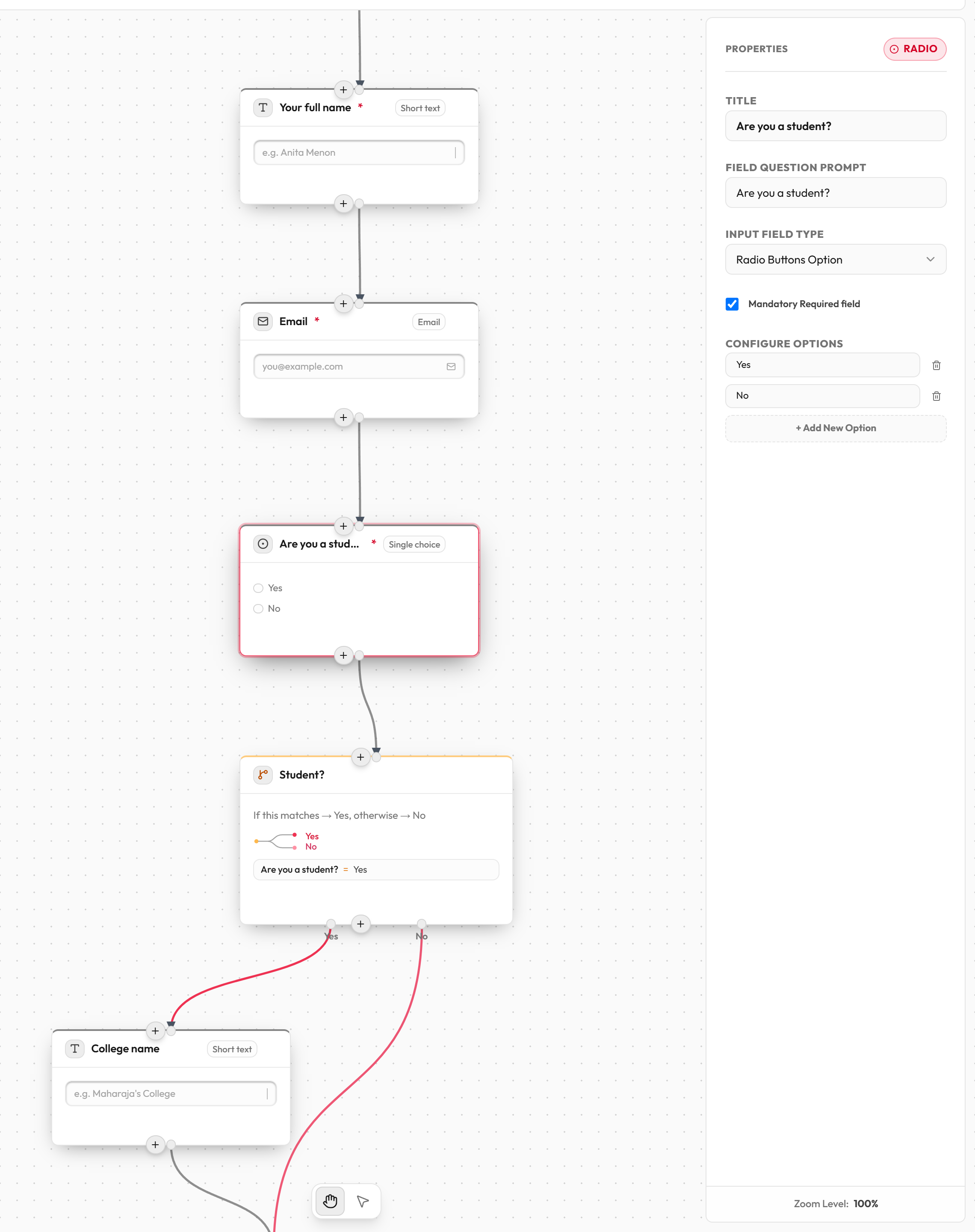
The Question block asks your respondent for one answer. You will use it more than any other block. Pick a question type to decide what kind of answer people can give.
The block on the board, with its settings on the right.
What your respondent sees
A card with your question and an answer field. Required questions show a red *, and the page says "* Indicates required question". Questions that come after an If / Else block, or that depend on an answer not yet given, appear only once they apply.
Connections
One input at the top and one output at the bottom.
Connect the output to the next block. Dragging again from the same output replaces the old connection.
How to add a question
Click Question in the Add to form list, or drag it onto the board.
Or hover a block and click the + below it, then choose Add Question Step. The new block is placed in the existing connection.
Click the block to open its settings on the right.
Type your question in Field Question Prompt.
Choose Input Field Type.
Tick Mandatory Required field if people must answer.
Connect the block to the next one.
Settings every question has
Setting
What it does
Options / default
Title
The block's name for you. It shows in the Outline and in the lists you pick from in other blocks. Respondents don't see it.
Text. New blocks are named "Text Field Question".
Field Question Prompt
The question your respondent reads.
Text. New blocks say "Enter question prompt here".
Input Field Type
The kind of answer. See the tables below.
15 types. Default: Short Answer Text.
Mandatory Required field
People can't submit without answering.
Checkbox. Default: off.
There is no separate help-text line under a question. Put any hint in the question itself. Questions can't have an "Other" option, random order, or a minimum and maximum date.
Text answers
Input Field Type
What the respondent gets
Settings for this type
Short Answer Text
A one-line box. Hint text: "Your answer".
Placeholder Hint, Max Characters, Validation Regex Pattern, Validation Failure Message
Long Answer Textarea
A taller box for paragraphs. Shows a character counter if you set a maximum.
Same four settings as Short Answer Text
Email Input
A box for an email address. Hint text: "Your email address".
Placeholder Hint, Max Characters, Validation Regex Pattern, Validation Failure Message
Phone Number Input
A phone box. Hint text: "Your phone number".
Same four settings. When you switch a question to this type, a ready-made pattern and message are filled in if empty: 10 to 14 digits, with an optional +.
Numeric Input
A number box. Hint text: "Your number answer". Scrolling the mouse wheel doesn't change the number.
Placeholder Hint, Allowed Range (Min and Max)
Text-type settings
Setting
What it does
Options / default
Placeholder Hint
Grey text shown inside the empty box.
Text. If empty, the type's default hint is used.
Max Characters
The longest answer allowed.
Whole number, 1 or more. Default: no limit. For email and phone it is checked when the person submits, with the message "<question> must be at most N characters."
Validation Regex Pattern
A format the answer must match. A regular expression is a short code that describes a format, such as ^[0-9]6$ for exactly six digits.
Text. Default: none. Start with ^ and end with $ so the whole answer must match.
Validation Failure Message
What people see when their answer doesn't match. If you set a pattern, this message also shows under the box as a permanent hint.
Text. If empty, the hint reads "Must match a specific format." and the error reads "Invalid format".
Allowed Range
Smallest (Min) and largest (Max) number allowed. Number questions only.
Numbers. Switching a question to Numeric Input sets Min to 0, so negative numbers are rejected until you change it.
Choice answers
Input Field Type
What the respondent gets
Settings for this type
Dropdown Select
A dropdown with the prompt "Select an option". Pick one.
Configure Options
Radio Buttons Option
A list of options. Pick one.
Configure Options
Multi-Select Checkboxes
A list of options. Pick as many as apply.
Configure Options
Configure Options is a list of text boxes, one per option. Click + Add New Option to add one (named "Option 1", "Option 2" and so on), and the bin icon to remove one. New choice questions start with two options. You need at least 2 options, and none can be empty.
Rating answers
Input Field Type
What the respondent gets
Settings for this type
Star Rating Scale
Clickable stars.
Number of stars: 2 to 10. Default 5.
Number Button Scale
Round numbered buttons.
Configure Options. Default 1 to 5. Needs at least 2 items.
Smiley Emoji Scale
Emoji buttons with a caption under each.
Configure Options. Default: "😠 Bad", "🙁 Poor", "😐 Neutral", "🙂 Good", "😄 Excellent". Write each as an emoji, a space, then a label.
Date and time answers
Input Field Type
What the respondent gets
Settings for this type
Date Picker
The date picker built into their browser.
None
Time Picker
The time picker built into their browser.
None
Date & Time Picker
A date and time picker together.
None
File upload
Input Field Type
What the respondent gets
Settings for this type
File Upload Uploader
An upload box for one file per question. They see the allowed types and size limit, plus Retry and Remove buttons. Submit waits until the upload finishes.
Max File Size (MB), Allowed File Types
Setting
What it does
Options / default
Max File Size (MB)
The biggest file allowed.
1 to 10. Default 10. Higher numbers are lowered to 10.
Allowed File Types
Which kinds of file are accepted.
Tick any of: Images (PNG, JPG, WebP, etc.), PDF Documents, Text Documents (.doc, .docx, .txt), Spreadsheets (.xls, .xlsx, .csv). If none is ticked, any common file type is accepted. SVG images and programs are never accepted.
Example: ask for a phone number
Add a Question block and set Field Question Prompt to "Your WhatsApp number".
Set Input Field Type to Phone Number Input.
Tick Mandatory Required field.
Leave the filled-in pattern as it is, or change Validation Failure Message to "Enter a 10-digit number".
Common mistakes
Message
What it means
What to do
Question label is empty.
The prompt is blank.
Type a question in Field Question Prompt.
Answer is used but optional: "X" is used by "A", "B" ... but isn't required.
Another block reads this answer (an If / Else, Calculation, Payment or Repeat), so it must always have a value.
Click Make required, or tick Mandatory Required field.
"<type>" needs at least 2 options.
A dropdown, radio or checkbox question has fewer than two options.
Add options.
One or more options are empty.
An option has no text.
Fill it in or remove it.
Star rating needs at least 2 stars. / Rating scale needs at least 2 items.
Too few stars or items.
Add more.
File upload max size must be greater than 0.
The size is empty or zero.
Enter a size from 1 to 10.
Your respondents may see: "This is a required question", "Please enter a valid number", "Value must be at least X", "Value must be at most X", or "Wait for the upload to finish".