
If / Else
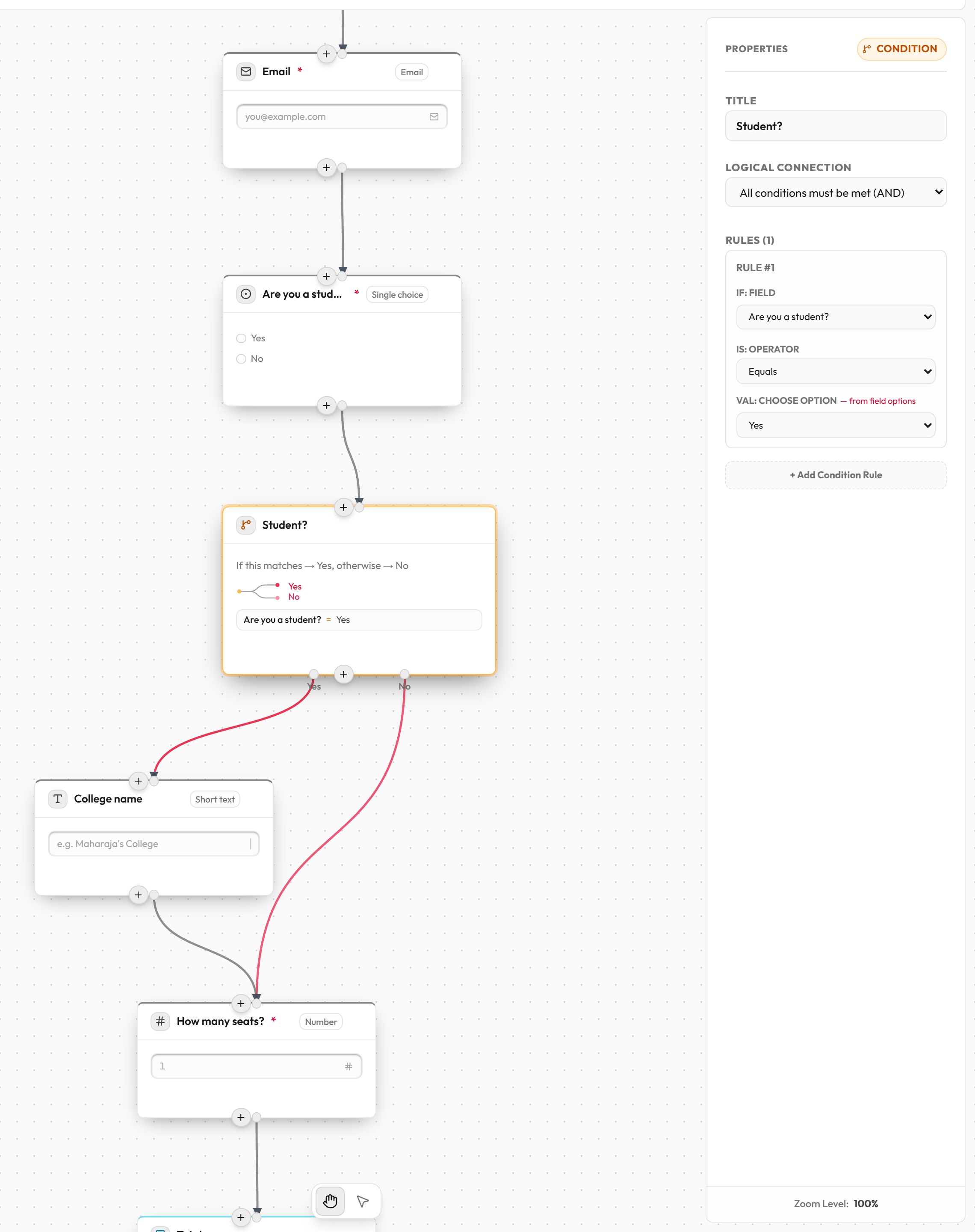
The If / Else block checks an earlier answer and sends the person down one of two paths: Yes if the answer matches your rules, No (the else path) if it doesn't. Use it to show a question only to the people it applies to. Need more than two paths? Add Otherwise, if paths to check more things in order.
What your respondent sees
Nothing. The block is invisible. People only see the questions on the path that applies to them. Until the answer a rule depends on is given, nothing after the block is shown.
Connections
- One input at the top.
- Two outputs at the bottom: Yes on the left and No on the right. Each takes one connection. With Otherwise, if paths added, there is one output per path, in the order of your checks, ending with Otherwise.
- Every path must lead to an End screen. They can lead to other If / Else blocks first.
- The paths can join again by connecting into the same block.
How to add an If / Else block
- Place the question you want to check first, and mark it required.
- Click If / Else in the Add to form list, or hover a block, click the + below it and choose Add Logic Branch.
- Connect the question to the If / Else block.
- Click the If / Else block. Under Rules, choose a question in IF: Field.
- Choose an operator in IS and a value in VAL.
- Drag the Yes output to the block for matching answers.
- Drag the No output to the block for everyone else.
Settings
| Setting | What it does | Options / default |
|---|---|---|
| Title | The block's name for you. | Text. New blocks are named "Logic Condition". |
| Logical Connection | How several rules combine. | "All of these rules match" (default) or "Any of these rules match". |
| IF: Field | The earlier answer this rule checks. Only Question blocks that come before this block are listed. | "Select question…". Shows "No upstream fields" until you connect a question before the block. |
| IS: Operator | How to compare the answer. The list depends on the question type. | See the table below. |
| VAL | The value to compare with. Hidden for Is Empty and Is Not Empty. | A list of the question's options for choice and rating questions, a number box for Numeric Input, or a text box for the rest. |
| + Add Condition Rule | Adds another rule to the same check. | No limit. Each extra rule has a delete button. |
| + Add "Otherwise, if" path | Adds another check with its own rules and its own path. | No limit. See Otherwise, if paths. |
When you change IF: Field, the operator and value reset.
Operators by answer type
| Question type | Operators |
|---|---|
| Dropdown, radio buttons, checkboxes | Equals, Contains, Is Empty, Is Not Empty |
| Number, star rating, number scale, smiley scale | Equals, Greater Than (>), Less Than (<), Is Empty, Is Not Empty |
| Text, long text, email, phone, date, time, date and time, file | Equals, Contains substring, Is Empty, Is Not Empty, Greater Than (>), Less Than (<) |
| Operator | Matches when |
|---|---|
| Equals | The answer is exactly the value. Capital letters and spaces at the ends don't matter. |
| Contains / Contains substring | The answer includes the value anywhere in it. For checkboxes, true if that option is among those ticked. |
| Greater Than (>) | The answer is bigger than the value. Numbers compare as numbers (currency signs and commas are ignored). Other answers compare in alphabetical order. |
| Less Than (<) | The answer is smaller than the value, compared the same way. |
| Is Empty | The question was left unanswered. |
| Is Not Empty | Something was entered. |
How several rules combine
- All of these rules match: every rule must match for the person to take this path. If any rule doesn't match, the next check (or “Otherwise”) is tried.
- Any of these rules match: one matching rule is enough. The next check (or “Otherwise”) is tried only when no rule matches.
- A rule whose question hasn't been answered yet can't be checked. On a scrolling form, nothing after the block shows until the answers are in.
- With “All of these rules match”, don't use the same question twice. One answer usually can't be two different things, so the check would never match. The editor greys out that question and warns: "This question is already used here, and one answer can't match both rules — pick a different question."
The else path
The No output is your else path. It runs whenever the rules aren't met. If you want nothing special to happen, connect No straight to the next shared block or an End screen. You can't leave it unconnected. Once you add Otherwise, if paths, this path is called Otherwise and catches everyone who didn't match any check. It has no rules of its own.
Otherwise, if paths
Use Otherwise, if when two paths aren't enough, for example when one question has three or more answers that each lead somewhere different. Each Otherwise, if has its own rules, its own "all of these" or "any of these" setting and its own path.
- Add one: click the block, then click + Add "Otherwise, if" path in its settings. A new output appears on the block.
- Reorder: move a check up or down in the settings. The order matters (see below), and the outputs follow it.
- Remove: use the delete button on that check. Its path goes away with it.
The first match wins. Checks run from top to bottom: If, then each Otherwise, if, then Otherwise. The person takes the path of the first check that matches and the rest are skipped. If nothing matches, they go down Otherwise.
Example: a student discount
You sell workshop tickets. Show a "Student ID" question only to students.
- Add a radio question "Who are you?" with options "Student" and "Working professional". Tick Mandatory Required field.
- Add an If / Else block after it and connect them.
- Set IF: Field to "Who are you?", IS to Equals, and VAL to "Student".
- Connect Yes to a File Upload question "Upload your student ID".
- Connect that question and the No output to the same next block.
Example: three ticket types
Your "Ticket" question has VIP, Student and General options, and each needs something different. One If / Else block handles all three:
- If "Ticket" Equals "VIP" → ask the VIP perks question.
- Click + Add "Otherwise, if" path. Otherwise, if "Ticket" Equals "Student" → ask for a student ID.
- Otherwise (everyone else) → go to the thank-you screen.
Common mistakes
| Message | What it means | What to do |
|---|---|---|
| The “If” check in “X” has no rules yet. | There are no rules. | Click + Add Condition Rule. |
| A condition rule has no target field selected. | IF: Field is empty. | Choose a question. If the list is empty, connect a Question block before this one first. |
| A condition rule is missing its comparison value. | Equals, Contains, Greater Than or Less Than has no value. | Fill in VAL. |
| A rule in the “If” check in “X” uses a question that has been deleted. | You deleted the question the rule used. | Pick another question. |
| Every path out of “X” needs to lead somewhere. Connect the “Otherwise, if #2” path. | One of the block's paths (Yes, No, an Otherwise, if, or Otherwise) isn't connected, or doesn't reach an End screen. The message names the path. | Connect every output. |
| The “Otherwise, if #1” check in “X” has no rules yet. | An Otherwise, if path has no rules, so nobody would ever take it. | Add a rule to it, or delete the path. |
| Answer is used but optional | The question being checked isn't required. | Click Make required. This isn't needed for Is Empty and Is Not Empty. |